Edit your own photos with AI.
A photo you already like is a useful starting point. Upload it to Moonlight, describe what should change, and keep the details that make it yours. Create a new look, a different setting, or a fresh version for your next post.
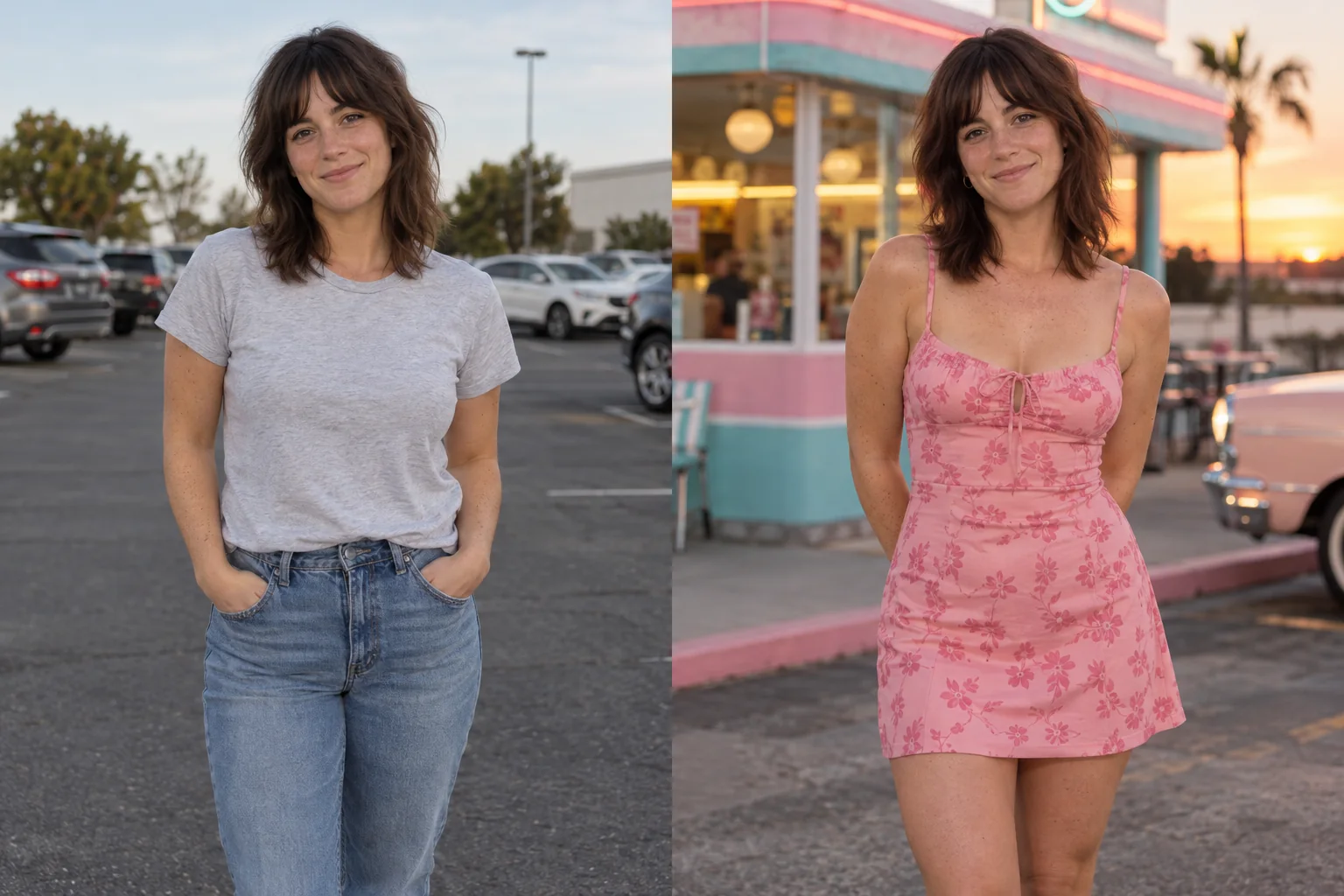
A little overdressed. Perfect.
A casual brunette portrait takes a playful turn in pink outside a retro diner.
Explore the look and suggested promptStart with a clear source photo.
Open Create in the studio and add the image you want to edit. Use a sharp source where the face, clothing, and important details are visible. A dark or heavily compressed image gives the editor less reliable information to work with.
Use your own photos or images you have permission to edit. If another person is pictured, get their permission for the transformation you are requesting as well as for any later publication.
Say what changes and what stays.
A useful editing prompt has two parts: the change and the details to preserve. For example: Replace the busy room with a warm gray studio background. Keep my face, expression, hair, outfit, and camera angle the same.
Begin with one meaningful change. For an outfit edit, describe the garment and protect the pose and setting. For a lighting edit, describe the direction and softness of the light while preserving natural skin texture.
- Background: Move the portrait to a sunlit terrace. Keep the same person and outfit.
- Wardrobe: Change the jacket to a navy blazer. Keep the face, hairstyle, and pose.
- Lighting: Add soft window light from the left. Keep realistic skin texture and the original setting.
Add references when a description is not enough.
A reference can show a specific outfit, location, person, or pose. Give each reference a clear role so the editor knows which visual details to borrow. You can save references in your private library for later creations.
Review the face, hands, garment edges, and background before downloading. AI editing can change details you intended to keep; a preservation instruction improves direction but does not guarantee an exact match. Use a more focused prompt if the first result changes too much.
Download the image when you are happy with it.
Moonlight delivers finished images as JPEGs with 4K output available. Your uploads and results are private to your account by default, with no automatic public gallery. You choose what to download and publish.
You can also use an upload or finished creation as the starting image for a short HD animation. Review the still first, then describe the movement you want in the animation step.
Your questions, answered.
Can I edit an existing image instead of generating a new one?
Yes. Add your photo in Create and describe the changes. Moonlight uses the uploaded image as a source for editing. You can also create an image from a prompt without uploading a source.
Can I try editing my own photos for free?
New accounts receive 15 welcome credits, enough for 5 image creations, with no card required. Each image creation costs 3 credits. Further use requires paid credits.
Will the AI keep my face exactly the same?
You can direct Moonlight to preserve your face and add a person reference, but AI output is not a pixel-exact edit. Check the result before sharing, especially when identity and small details matter.
Make the scene you imagined.
Create an account for 15 credits—enough for 5 image creations. No card required.
Start creating